peter (admin) -

Kubernetes Rolling Updates
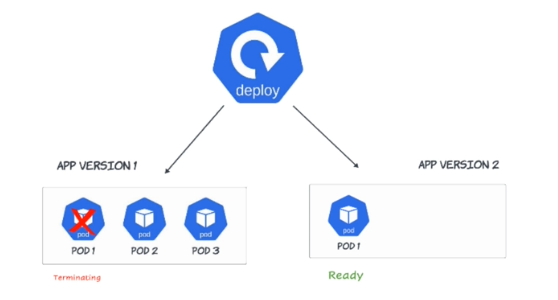 We will now learn how Kubernetes performs rolling updates to upgrade an application image safely without stopping the service.
This process gradually replaces old pods with new ones so the application remains available and stable during the update.
Let's get started.
Verify the Current Deployment Image
For this, we are already logged into both the Master node and the Worker node.
Let's move on and first verify the deployment configuration to check which container image is currently being used by the web-app deployment.
For this, we run:
kubectl get deployment web-app -o jsonpath='{.spec.template.spec.containers[*].image}'
The JSONPath parameter extracts a specific value from the deployment configuration. Here, we use a JSONPath expression that reads the image field from the container definition inside the pod template.
This shows the container image that Kubernetes uses when creating pods for this deployment.
A container image is a packaged application that includes the web server software, required libraries, and configuration needed to run the application inside a container.
Kubernetes pulls this image from a container registry and uses it to start the pods.
After pressing Enter, you can see the output:
nginx
This confirms that the deployment is currently running pods using the NGINX container image.
Update the Container Image
Next, we update the container image of the deployment using the kubectl set image command.
kubectl set image deployment/web-app nginx=nginx:1.26
This command tells Kubernetes to replace the current image used by the web-app deployment with a newer version—in this case, NGINX version 1.26.
When we press Enter, Kubernetes immediately starts the rolling update process.
This means Kubernetes gradually replaces the old pods with new pods running the updated image while keeping the application available.
Deprecated --record Flag
You may see a message saying that the --record flag has been deprecated.
This simply means that Kubernetes no longer recommends using the --record option to track command history.
You do not need to worry about this message because the image update still happens successfully. You can confirm this from the output showing that the web-app deployment image has been updated.
You can simply remove the --record flag and run the command normally:
kubectl set image deployment/web-app nginx=nginx:1.26
The update will then work without displaying the deprecated --record message.
Check the Rollout Status
Let's move on and check the rollout status of the deployment.
kubectl rollout status deployment/web-app
A rollout means Kubernetes is gradually replacing the old pods with new pods that use the updated image. This command allows us to monitor that process until it finishes.
After pressing Enter, you can see messages showing that the rollout has started and Kubernetes is updating the replicas step by step while terminating the old ones.
Eventually, you should see:
deployment "web-app" successfully rolled out
This confirms that the rolling update completed successfully.
You may also notice some stuck or soft lockup messages on the screen. In a lab environment with limited RAM and CPU resources, the system can become slow while Kubernetes creates and terminates containers during the update.
Even with this delay, the successfully rolled out message confirms that Kubernetes completed the deployment rollout.
Verify the New Pods
Next, we verify the result by running:
kubectl get pods -l app=web-app -o wide
After pressing Enter, you can see that new pods are now running with different names.
This confirms that Kubernetes successfully replaced the old pods with newly created pods during the rolling update process while keeping the application running.
Examine the Deployment
Next, we retrieve more detailed information about the deployment using:
kubectl describe deployment web-app
This command shows detailed configuration and status information about the deployment, including:
-
Container image
-
Replica information
-
Rollout strategy
-
ReplicaSet information
-
Deployment events
You can now see that the container image is:
nginx:1.26
This confirms that the rolling update successfully applied the new image.
You can also see that the new ReplicaSet is running the required replicas while the old ReplicaSet has been scaled down to zero.
This clearly demonstrates how Kubernetes replaces old pods with new ones during the rolling update process.
Verify the Application from the Worker Node
Now, let's move to the Worker node to verify the update.
The application pods are scheduled to run on worker nodes, while the control-plane node manages the state of the Kubernetes cluster.
We can use curl with the worker node IP address and the NodePort number configured in the previous lectures to send an HTTP request to the service.
For example:
curl -I http://<WORKER-NODE-IP>:<NODEPORT>
After pressing Enter, you should receive a successful HTTP response such as:
HTTP/1.1 200 OK
Server: nginx/1.26.x
The HTTP 200 OK response confirms that the application is responding successfully.
The NGINX server version also confirms that the application pods are now running the updated NGINX image.
How Kubernetes Rolling Updates Work
This is a simple demonstration of how rolling updates work in Kubernetes.
During a rolling update, Kubernetes gradually replaces old pods with new pods running the updated container image.
Instead of stopping all the existing pods and then starting the new ones, Kubernetes performs the replacement progressively.
This allows the application to remain available while the upgrade is taking place.
The basic process is:
Old Pods
   ↓
Create New Pod
   ↓
Wait Until New Pod Is Ready
   ↓
Remove Old Pod
   ↓
Create Another New Pod
   ↓
Continue Until All Pods Are Updated
   ↓
Rolling Update Complete
This approach helps Kubernetes update applications while minimizing or avoiding downtime.
Comments (0)
There are no comments yet. Be the first to comment.
Log in or register to leave a comment. all comments are subject to admin approval