peter (admin) -

Understanding Kubernetes Pods Internally
Introduction
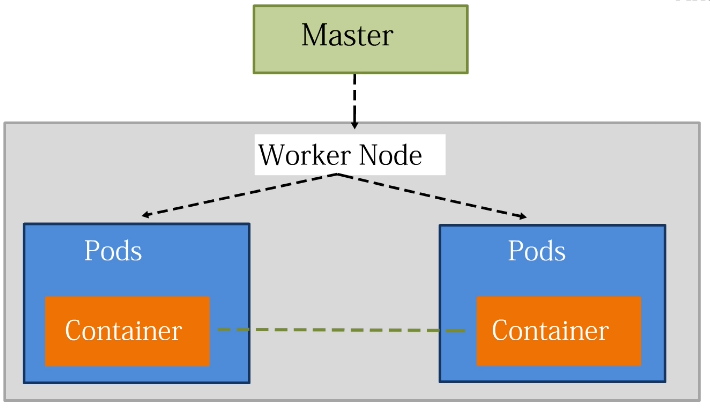 We now start a new section where we dive deeper into how Kubernetes Pods actually work behind the scenes.
In this section, we will learn what happens inside a Pod, how containers live and communicate together, and how the Pod lifecycle behaves from startup through failure and restart.
We will also intentionally break Pods, analyze logs and events, and practice real debugging so that we can clearly understand how Kubernetes handles failures in real-world environments.
Real-world Kubernetes environments commonly contain multiple nodes, so working with a separate control-plane node and worker node helps us understand how Pods are scheduled and executed across a cluster.
Checking the Kubernetes Cluster
We first check the current state of our Kubernetes cluster.
From the control-plane node, run:
kubectl get nodes
Kubernetes displays the machines currently connected to the cluster.
For example:
NAME       STATUS   ROLES           AGE   VERSION
k8s-master   Ready    control-plane   ...   ...
k8s-worker1   Ready              ...   ...
The k8s-master node is marked as the control plane and is in the Ready state, confirming that the control-plane node is working properly.
The k8s-worker1 node is also shown as Ready, which means the worker has successfully joined the cluster and is ready to run Pods.
Creating a Namespace
Next, create a namespace named deep.
A namespace helps us logically separate and organize resources inside the same Kubernetes cluster. Instead of mixing Pods, Services, and Deployments together, the deep namespace gives us a separate area in which to perform our exercises.
Create it with:
kubectl create namespace deep
After successfully creating the namespace, set it as the default namespace for the current kubectl context:
kubectl config set-context --current --namespace=deep
This means that subsequent Kubernetes commands automatically operate inside the deep namespace without requiring us to repeatedly specify:
-n deep
The following message confirms that the configuration has been updated:
Context modified.
New Pods, Services, and other namespaced resources created using the current context will now use the deep namespace by default.
Checking the Available Namespaces
List the namespaces in the cluster:
kubectl get namespaces
Kubernetes displays the namespaces that currently exist.
The deep namespace should appear with a status of Active.
You will also see standard Kubernetes namespaces such as:
default
kube-node-lease
kube-public
kube-system
These namespaces are created and used by Kubernetes for various cluster and system purposes.
We can confirm the namespace configured in our current context with:
kubectl config view | grep namespace
The output should show:
namespace: deep
This confirms that our current context is configured to use the deep namespace.
Creating a Pod on the Worker Node
Now it is time to create a Pod so that we can examine Pod behavior in more detail.
We create a Pod named pod-internal using the NGINX image. NGINX is lightweight and makes it easy to confirm that the container is running correctly.
We also specify a restart policy of Never.
A node selector is used to tell Kubernetes that we specifically want this Pod to run on the k8s-worker1 node.
The node selector uses the standard hostname label:
kubernetes.io/hostname
with the value:
k8s-worker1
This prevents the scheduler from choosing another node and ensures that our Pod is placed on the worker node for this exercise.
kubectl run pod-internal --image=nginx --restart=Never --overrides='{"spec":{"nodeSelector":{"kubernetes.io/hostname":"k8s-worker1"}}}'
After creating the Pod, Kubernetes should report:
pod/pod-internal created
This confirms that the Kubernetes API accepted the Pod definition.
Kubernetes then schedules the Pod onto the k8s-worker1 node. The kubelet and container runtime on that worker are responsible for obtaining the NGINX image and starting the container.
Checking the Pod
Now verify where pod-internal is running and check its current status:
kubectl get pods -o wide
The output should contain information similar to:
NAME           READY   STATUS    RESTARTS   AGE     IP           NODE          NOMINATED NODE   READINESS GATES
pod-internal   1/1     Running   0          3m32s   10.244.1.3   k8s-worker1   <none>           <none>
The important fields are READY, STATUS, RESTARTS, IP, and NODE.
READY
1/1
This means the Pod contains one container and that container is ready.
STATUS
Running
This confirms that Kubernetes successfully started the NGINX container.
RESTARTS
0
This tells us that the container has not restarted.
NODE
k8s-worker1
This confirms that the Pod was scheduled onto the worker node as requested by our node selector.
IP
10.244.1.3
This is the Pod's internal cluster IP address.
The address comes from the Pod network and allows the Pod to participate in Kubernetes internal networking.
Describing the Pod
We can examine the Pod in considerably more detail with:
kubectl describe pod pod-internal
This command provides detailed information about the Pod, including its scheduling, container, networking, conditions, volumes, node selector, and events.
The Pod status should show:
Running
and its IP address should correspond to an address from the cluster's Pod network, such as:
10.244.1.3
This IP is primarily used for communication within the Kubernetes network rather than as an external address for accessing the application.
Container Information
Under the container section of kubectl describe, we can see information about the container running inside the Pod.
The container uses the NGINX image.
Kubernetes instructs the container runtime to obtain the image if necessary, create the container, and start it.
The container state should show:
Running
and its readiness should be:
True
This means Kubernetes considers the container ready.
The restart count should also be:
0
which confirms that the container has not restarted.
Pod Conditions
Further down the output is the conditions section.
These conditions describe important stages in the Pod lifecycle and indicate whether the Pod has been successfully initialized, scheduled, and made ready.
A healthy running Pod should have its important readiness conditions set to True.
Pod Volumes
Kubernetes may automatically provide projected ServiceAccount-related information to a Pod.
This can provide credentials and information that a workload can use when communicating with the Kubernetes API, depending on the Pod and ServiceAccount configuration.
This forms part of Kubernetes' mechanism for providing workloads with an identity inside the cluster.
Node Selector
One of the important sections for this exercise is:
Node-Selectors:
Here we can see the node selector that was provided when creating the Pod:
kubernetes.io/hostname=k8s-worker1
This confirms that Kubernetes used our node selection requirement and scheduled the Pod specifically onto k8s-worker1.
Pod Events
At the bottom of kubectl describe pod, Kubernetes provides an events section.
This gives us a useful timeline of what happened while the Pod was being created.
The events can show that:
-
The scheduler assigned the Pod to
k8s-worker1. -
The kubelet pulled or found the NGINX image.
-
The container was created.
-
The container was started.
This event sequence allows us to follow the Pod creation process and is particularly useful when troubleshooting Pods that fail to start.
At this stage, we can confirm that the Pod has been scheduled to the worker, the container has started, the Pod has received an IP address, and Kubernetes is managing it.
Examining the Pod from the Worker Node
So far, we have created and managed the Pod through Kubernetes using kubectl.
The Pod itself, however, is running on the worker node.
We can therefore switch to k8s-worker1 and examine what exists locally at the container-runtime level.
Viewing Pod Sandboxes with crictl
On the worker node, run:
sudo crictl pods
crictl communicates with the CRI-compatible container runtime on the worker node.
Rather than displaying Kubernetes API objects in the same way as kubectl, it allows us to inspect the Pod sandboxes and containers known to the local container runtime.
The output should include pod-internal in the deep namespace with a state such as:
READY
This confirms that the Pod created through Kubernetes corresponds to a Pod sandbox running on this worker at the container-runtime level.
The output also contains a Pod ID, which identifies the Pod sandbox within the runtime.
Other Kubernetes-related Pod sandboxes may also appear on the worker, including networking and system components.
Viewing the Containers
Next, examine the actual containers:
sudo crictl ps
Unlike:
sudo crictl pods
which lists Pod sandboxes, crictl ps lists containers.
The output includes information such as the container ID, image, state, Pod ID, and container name.
Our pod-internal container should appear as:
Running
and should be using the NGINX image.
This confirms that NGINX is actually running through the container runtime on the worker node.
Inspecting the Container
We can go even deeper by inspecting the container directly.
First obtain its container ID:
sudo crictl ps
Then inspect it:
sudo crictl inspect
This displays low-level information about the container as understood by the container runtime.
The output can include information about the container's configuration, process, Linux namespaces, mounts, security settings, runtime state, and other resources.
This demonstrates an important relationship between Kubernetes and the underlying operating system.
From the Kubernetes perspective, we work with objects such as:
Pod
Container
Deployment
Service
At the worker-node level, however, the container runtime ultimately creates and manages container processes using Linux kernel facilities.
The relationship can be viewed approximately as:
Kubernetes API
      |
      v
    Kubelet
      |
      v
Container Runtime
      |
      v
Pod Sandbox + Containers
      |
      v
Linux Processes and Kernel Resources
This demonstrates that a Kubernetes Pod is not simply an abstract configuration object. Kubernetes coordinates the workload, while the container runtime and Linux operating system provide the mechanisms that actually execute and isolate its containers on the worker node.
Comments (0)
There are no comments yet. Be the first to comment.
Log in or register to leave a comment. all comments are subject to admin approval